A Step-by-Step Guide for Migrating from Tableau to Power BI
Accelerate your Tableau to Power BI migration with Entrans’ expert framework. Ensure accurate dashboards, faster deployment, and lower TCO.
A Step-by-Step Guide for Migrating from Tableau to Power BI
4 mins
July 31, 2026
Author
Aditya Santhanam
TL;DR
A Tableau to Power BI migration is a translation, not a copy job, since Tableau's visual-centric calculations have to be re-architected for Power BI's model-centric DAX and star schema approach.
The trickiest conversions are LOD expressions, table calculations, and custom SQL, which need manual refactoring into DAX functions like CALCULATE and ALLEXCEPT plus Power Query for upstream ETL.
Beyond the build, the real wins are consolidated Microsoft licensing, lower total cost of ownership, and central governance with RLS, sensitivity labels, and certified datasets.
A phased rollout with parallel runs, hypercare, and ongoing enablement is what makes adoption stick, and Entrans' accelerated framework cuts transition time by up to 40 percent.
Tableau to Power BI migration involves complex architectural shifts. Moving towards a unified Microsoft ecosystem unlocks high value. It improves governance, AI connections, and cost management.
Power BI gives distinct enterprise benefits over Tableau. It is a superior choice for modern and governed data analytics.
Its smooth connection with the Microsoft 365 ecosystem allows for easy collaboration. Users can embed insights directly into Teams, PowerPoint, and Excel workflows without barriers.
Power BI significantly lowers Total Cost of Ownership (TCO). It does this by consolidating licensing and removing the need for separate niche tools. This gives a sustainable financial model for large deployments.
The connection of Copilot and advanced AI features helps you democratize data science. This makes it a better option for companies aiming to build a data-led culture.
Also, uniting data engineering, data science, and business intelligence within Microsoft Fabric creates a single source of truth. This removes the data silos often associated with legacy Tableau deployments.
Book a Free Consultation
Share your details and our experts will reach out to discuss your goals.
Steps to Migrate from Tableau to Power BI
1. Assess Your Existing Tableau Estate to Draft a Plan
You must assess your existing Tableau environment to migrate effectively. This helps you set up a structured and safe plan. Here are the steps to simplify this assessment during your Tableau to Power BI migration:
Inventory Existing Data Assets: Audit every Tableau workbook and data source. Distinguish between mission-essential assets and redundant reports that no longer serve business needs.
Analyze Calculation Logic: Scrutinize Tableau Calculated Fields and LOD (Level of Detail) expressions. Understand how they will translate into the DAX (Data Analysis Expressions) language in Power BI.
Assess Data Quality and Governance: Evaluate current data hygiene and security roles. Evaluate row-level security (RLS) implementations. Decide how they will map to the semantic models in Power BI.
Map to Power BI Architecture: Plan the transition from rigid Tableau data extracts to flexible Power BI import or DirectQuery modes. Make sure your new architecture supports future growth.
Identify Complexity Drivers: Flag complex visualizations and custom SQL queries early in the process. Allocate appropriate resources for manual refactoring versus automated conversion.
2. Create a Visual Data Framework on Power BI Based on Tableau Logic
Creating a visual data framework in Power BI based on a Tableau foundation is key. You must make sure the data is optimized for the specific interactive features of the Microsoft platform. Key steps during your Tableau to Power BI migration process include:
Data Model Alignment: Adapt the flat-file tendency of Tableau data sources into Power BI star schema standards. Make sure dimensions, facts, and relationships are consistent for optimal performance.
Visualization Blueprinting: Draft visual requirements that capture the analytical intent of Tableau dashboards rather than just copying pixels. Identify chances to use native Power BI visuals for better performance.
Mapping Data Hierarchies: Replicate and improve drill-down paths and hierarchies. Make sure users can navigate from high-level summaries to granular transaction data smoothly.
Performance Optimization: Configure incremental refreshes, aggregations, and query folding. This supports near real-time analytics and addresses common performance bottlenecks found in legacy Tableau reports.
Semantic Model Standardization: Set up shared datasets and certified semantic models. This promotes reuse across the company and prevents the spread of siloed data logic.
3. Create a Roadmap Based on the Priority for Business Functions
Creating a Tableau to Power BI migration roadmap requires matching priorities with business functions. This keeps the business running during the transition. Key steps include:
Segment by Business Criticality: Categorize reports into groups like Critical, Important, and Nice-to-Have. Make sure executive dashboards and operational reports are in the first sprint.
Define Migration Waves: Structure the Tableau to Power BI migration into agile waves based on department or data domain. Start with Finance and then move to Sales. This allows for iterative learning and process refinement.
Set up a Hybrid Transition Period: Plan for a temporary period where both systems run in parallel. Allow users to validate Power BI numbers against Tableau baselines to build trust.
Allocate Resources for Change Management: Identify champions within each business unit to lead the charge. Give them early access and specialized training.
Set Clear Retirement Dates: Communicate firm sunset dates for Tableau access. This drives urgency and prevents users from clinging to the legacy system indefinitely.
4. Execute Automated Conversion and Manual Refactoring
You should use a mix of automation for standard parts and manual expertise for complex logic. This is necessary for speed and accuracy with your Tableau to Power BI migration. Key steps include:
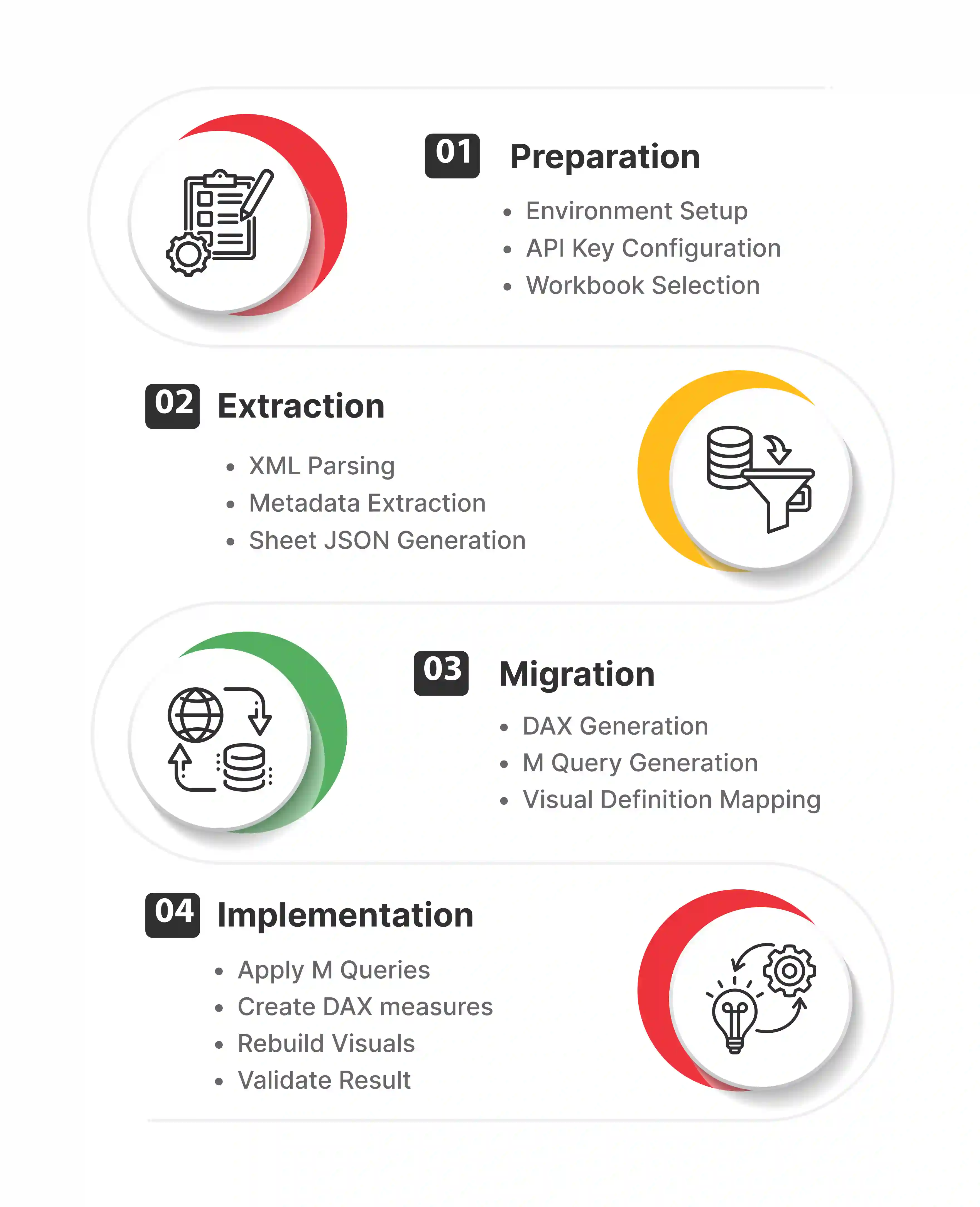
Use Tableau to Power BI Migration Accelerators: Use automated tools to convert standard visualizations and metadata from Tableau XML to Power BI JSON formats. This significantly lowers manual effort for low-complexity reports.
Refactor Complex DAX Logic: Manually rewrite complex Tableau Level of Detail (LOD) expressions into optimized DAX measures. Make sure calculations remain accurate within the new filter context.
Rebuild Interactive Elements: Recreate Tableau parameters, sets, and actions using Power BI bookmarks, drill-throughs, and field parameters. This maintains high interactivity.
Deploy Row-Level Security (RLS): Translate Tableau user filters into strong Power BI RLS roles. Connect with Azure Active Directory groups for dynamic security management.
Validate Data Accuracy: Run automated comparison scripts. Verify that the numbers in Power BI match the source of truth in Tableau down to the decimal point.
5. Drive User Usage and Organizational Enablement
Driving user usage is not just about training. It is about demonstrating the improved value and features of Power BI to shift the organizational mindset. Key steps during your Tableau to Power BI migration include:
Conduct Gap Analysis Workshops: Host sessions to show users how their specific Tableau workflows map to Power BI features. Address feature parity concerns head-on with superior alternatives.
Develop Role-Based Training Paths: Create distinct training curriculums for Report Consumers, Authors, and Data Stewards. Make sure everyone has the specific skills they need to succeed.
Showcase Better in Power BI Features: Highlight features that were difficult in Tableau but easy in Power BI. Show natural language Q&A, decomposition trees, and Excel connections.
Set up a Center of Excellence (CoE): Form a governance body to set standards and share best practices. Foster a community of internal Power BI champions.
Monitor Usage Metrics: Use the Power BI Activity Log to track usage. Identify dormant reports. Intervene where specific teams are struggling to use the new platform.
6. Navigate Technical Complexities and Translation Challenges
Migrating from Tableau to Power BI is rarely a 1-to-1 conversion. It is a translation process where understanding the linguistic differences between the two platforms is necessary.
Tableau uses a visual-centric query generation. Power BI uses a model-centric method. This requires a shift in how calculations are architected.
Failing to address these technical nuances early can lead to performance degradation and incorrect data outputs. We have outlined the specific technical challenges you must account for during the engineering phase.
Translation of Calculated Fields to DAX
The shift from Tableau calculation language to Power BI DAX (Data Analysis Expressions) is the most significant technical hurdle. Key considerations during your Tableau to Power BI migration include:
Level of Detail (LOD) Expressions: Tableau FIXED, INCLUDE, and EXCLUDE functions must be rewritten using Power BI CALCULATE, ALLEXCEPT, and context transition logic. This achieves the same granularity.
Table Calculations: Replicating Tableau compute using logic requires mastering Power BI window functions and RANKX iterators. Make sure moving averages and running totals are accurate.
String Manipulation: Adapt string logic carefully. Power BI Power Query (M) is best suited for ETL transformations upstream. DAX should be reserved for aggregation and runtime logic.
Handling Nulls and Zeroes: Audit how each tool handles null values in aggregations. Power BI BLANK behavior differs from Tableau null handling. This can skew averages if not explicitly managed.
Data Preparation and ETL Migration
Migrating from Tableau to Power BI requires re-architecting your data ingestion layer. Key steps include:
Migrating Custom SQL: Convert complex custom SQL queries embedded in Tableau workbooks into strong Power Query steps. You can also use SQL Views in the data warehouse to improve query folding and refresh performance.
Replacing Tableau Prep Flows: Rebuild data preparation workflows using Power BI Dataflows (Power Query Online). This centralizes logic and allows for reusability across multiple datasets.
Parameter Translation: Map Tableau parameters to Power BI What-if parameters and Field Parameters. Tableau parameters often drive what-if analysis. This maintains dynamic user interactivity.
Data Source Consolidation: Identify instances where multiple Tableau workbooks connect to the same data. Combine them into a single, certified Power BI Semantic Model to lower redundancy.
7. Set up Complete Governance and Security Models
One of the primary drivers for migrating from Tableau to Power BI is the ability to deploy enterprise-grade governance. This is often fragmented in legacy Tableau environments.
Power BI allows for a central governance model. It balances self-service freedom with IT control. This makes sure data is correct across the company.
Using the Microsoft security stack makes sure that your data protection policies are consistent. This applies from the database layer all the way to the dashboard. Proper workspace architecture prevents the spread of unverified reports that often plagues mature analytics deployments.
Security Architecture Deployment
Securing your data in Power BI requires a different method than the permissioning model in Tableau. Key steps post Tableau to Power BI migration include:
Row-Level Security (RLS) Migration: Transition from Tableau User Filters to Power BI dynamic RLS roles. Utilize USERNAME or USERPRINCIPALNAME functions mapped to Entra ID (Azure AD) groups.
Workspace Planning: Architect a workspace strategy that separates Development, Test, and Production environments. This makes sure that only validated content reaches end-users.
Sensitivity Labeling: Deploy Microsoft Information Protection (MIP) labels to classify dashboards. Make sure that data retains its security wrapper even when exported to Excel or PDF.
Gateway Management: Configure On-premises Data Gateways to make sure secure connections exist between cloud-based Power BI reports and on-premise legacy data sources.
Content Governance and Certification
You must set up a clear certification process to prevent the chaos of multiple versions of the truth. Key steps include:
Endorsement and Certification: Utilize Power BI Promoted and Certified endorsement mechanisms. This signals to users which datasets are trusted and validated by the data stewardship team.
Lineage Views: Use Power BI lineage view to track data provenance. This allows impact analysis before making changes to upstream data sources or semantic models.
Auditing and Monitoring: Deploy the Power BI Center of Excellence (CoE) starter kit to monitor usage. Identify unused reports for retirement. Track compliance with organizational standards.
8. Optimize Licensing and Total Cost of Ownership (TCO)
A major financial incentive for this Tableau to Power BI migration is the consolidation of licensing costs. Realizing these savings requires a strategic method for license assignment. Understanding the difference between Per User and Capacity (Fabric/Premium) licensing is key to maximizing ROI.
Retiring legacy Tableau server maintenance and support contracts can free up budget for innovation and training. We will cover the financial optimization aspects of the Tableau to Power BI migration framework.
Licensing Strategy and Assignment
Optimizing your spend involves matching the right license type to the right user persona. Key steps include:
Persona Mapping: Audit your user base to distinguish between Creators and Viewers. Creators need Pro or PPU licenses. Viewers can be covered by Capacity licensing. This often reveals significant savings compared to the Tableau Creator, Explorer, and Viewer model.
Capacity Planning: Evaluate the compute power required for your semantic models. Decide if a Power BI Premium (or Fabric F-SKU) capacity is more cost-effective than individual licensing for large user bases.
Fabric Connection: Assess if upgrading to Microsoft Fabric can further lower costs. It bundles data engineering, data warehousing, and BI into a single compute bill. This removes third-party ETL tool costs.
Sunset Legacy Costs: Rigorously track the decommissioning of Tableau Server cores or Online seats. Make sure that the projected TCO savings are realized on the balance sheet immediately post Tableau to Power BI migration.
9. Post-Migration Support and Continuous Improvement
The Tableau to Power BI migration does not end when the dashboards are published. It ends when the business is effectively using the new system to drive value.
The Hypercare period immediately following go-live is key. You must address bugs and user frustration before they turn into rejection.
Power BI is an evergreen service with monthly updates. This requires a strategy for continuous learning and feature usage. Setting up a feedback loop makes sure that the system grows in lockstep with changing business needs.
Hypercare and Stabilization
You must give intensive support during the initial rollout to make sure the landing is smooth. Key steps post Tableau to Power BI migration include:
Rapid Response Channels: Set up dedicated Teams channels or office hours. Users can report issues or ask questions and get immediate answers.
Performance Tuning: Monitor report rendering times in the production environment using Performance Analyzer and Azure Log Analytics. Identify and fix slow-loading visuals immediately.
Data Validation Loops: Continue running parallel validation scripts for 30-60 days. Give users a confidence report that proves Power BI numbers match the legacy system.
Building a Data Culture
Long-term success with your Tableau to Power BI Migration depends on fostering a community of practice. Key steps include:
Internal User Groups: Host monthly Lunch and Learn sessions. Demonstrate new Power BI features. Showcase internal success stories. Share tips and tricks.
Gamification of Usage: Deploy gamification strategies. Use badging or leaderboards to recognize power users who publish certified reports or complete training modules.
Template Galleries: Create a gallery of corporate-branded JSON themes and report templates. This lowers the barrier to entry for new content creators and makes sure brands remain consistent.
Self-Service Enablement: Give advanced business users control to build their own reports on top of certified datasets. Shift the role of IT from Report Factory to Platform Enabler.
Work With Entrans for an Accelerated Tableau to Power BI Migration Framework
Migrating from Tableau to Power BI does not have to be a slow or high-risk endeavor.
At Entrans, our unique Accelerated Tableau to Power BI Migration Framework combines automated conversion tools with expert strategic oversight. This lowers transition time by up to 40%.
We handle the complex translation of logic and governance. We make sure you realize the TCO benefits of the Microsoft ecosystem faster without sacrificing data correctness.
Don’t let technical debt hold your data strategy back!
Transform Your Analytics with Accelerated Tableau to Power BI Migration
Get faster, accurate, and cost-efficient migration with Entrans’ expert framework.
FAQs on Tableau to Power BI Migration
1. How do we translate Tableau LOD expressions into DAX without losing granularity?
Tableau uses fixed grouping, but Power BI relies on manipulating filter context. We map your fixed expressions to DAX using functions like CALCULATE and ALLEXCEPT. This allows your specific grouping logic to function correctly within the new data model after your Tableau to Power BI migration.
2. My Tableau dashboards rely heavily on Python or R scripts, so can I port them directly?
You should move heavy data processing upstream instead of running scripts at the visualization layer. We migrate your logic to Power Query or Fabric Notebooks to decouple processing from rendering. This keeps your advanced logic intact without slowing down the dashboard performance post Tableau to Power BI migration.
3. Why does the framework insist on refactoring our flat Tableau data sources into a Star Schema?
Tableau thrives on wide flat files, but Power BI requires a Star Schema for optimal speed. We normalize your data into distinct Fact and Dimension tables to reduce memory usage. This structural change ensures your DAX measures calculate instantly.
4. How does Power BI handle equivalent Table Calculations like running totals or moving averages?
Tableau calculations rely on visual layout, whereas Power BI measures are model-centric and work anywhere. We replace window functions with DAX time intelligence logic or explicit filter contexts. This allows you to reuse the same metric across any chart or table after your Tableau to Power BI migration.
Hire Skilled Power BI Developers Today
Work with Entrans experts to ensure seamless migration and robust BI solutions.
20+ Years of Industry Experience
500+ Successful Projects
50+ Global Clients including Fortune 500s
100% On-Time Delivery
Thank you! Your submission has been received!
Oops! Something went wrong while submitting the form.
Free Project Consultation
Trusted by Enterprises & Startups
Top 1% Industry Experts
Flexible Contracts & Transparent Pricing
50+ Successful Enterprise Deployments
Aditya Santhanam
Author
Aditya Santhanam is Co-founder & CTO of Entrans Technologies, spearheading AI-driven cloud and data solutions. A 13-year tech veteran, he leads innovation in generative AI, AI agents and MLOps. He also co-founded Infisign (identity security) and Thunai.AI (enterprise AI agents)
Related Blogs
Generative AI Governance: How to Govern Models You Did Not Build
Learn how gen AI governance helps you control third-party models you didn't build. Protect your prompts, data retrieval pipelines, and app workflows today.
The AI Governance Audit: What Gets Inspected, What Evidence You Need, and What to Do If You Do Not Have It
Passing an AI governance audit takes real proof, not just policies. Learn what auditors inspect, the evidence you need, and how to fix missing records.







-1.svg)