Learn how to fix Power BI visual misalignment, missing text, and disappearing data with practical troubleshooting tips for Desktop and Service issues.

Agentic Unconference 2026 - September 19, Chennai
View Event →





Tired of the new card visual messing up your Power BI report layouts?
Well, specific patches can solve that! And also, if you’re unsure why your Desktop designs fall apart in the Service, this guide breaks down the regression issues for you.
For most BI pros, the problem of reliably displaying headline metrics like Total Revenue or NPS can be solved with proper troubleshooting.
So, to help you get started, we’ve listed the fixes worth looking into.

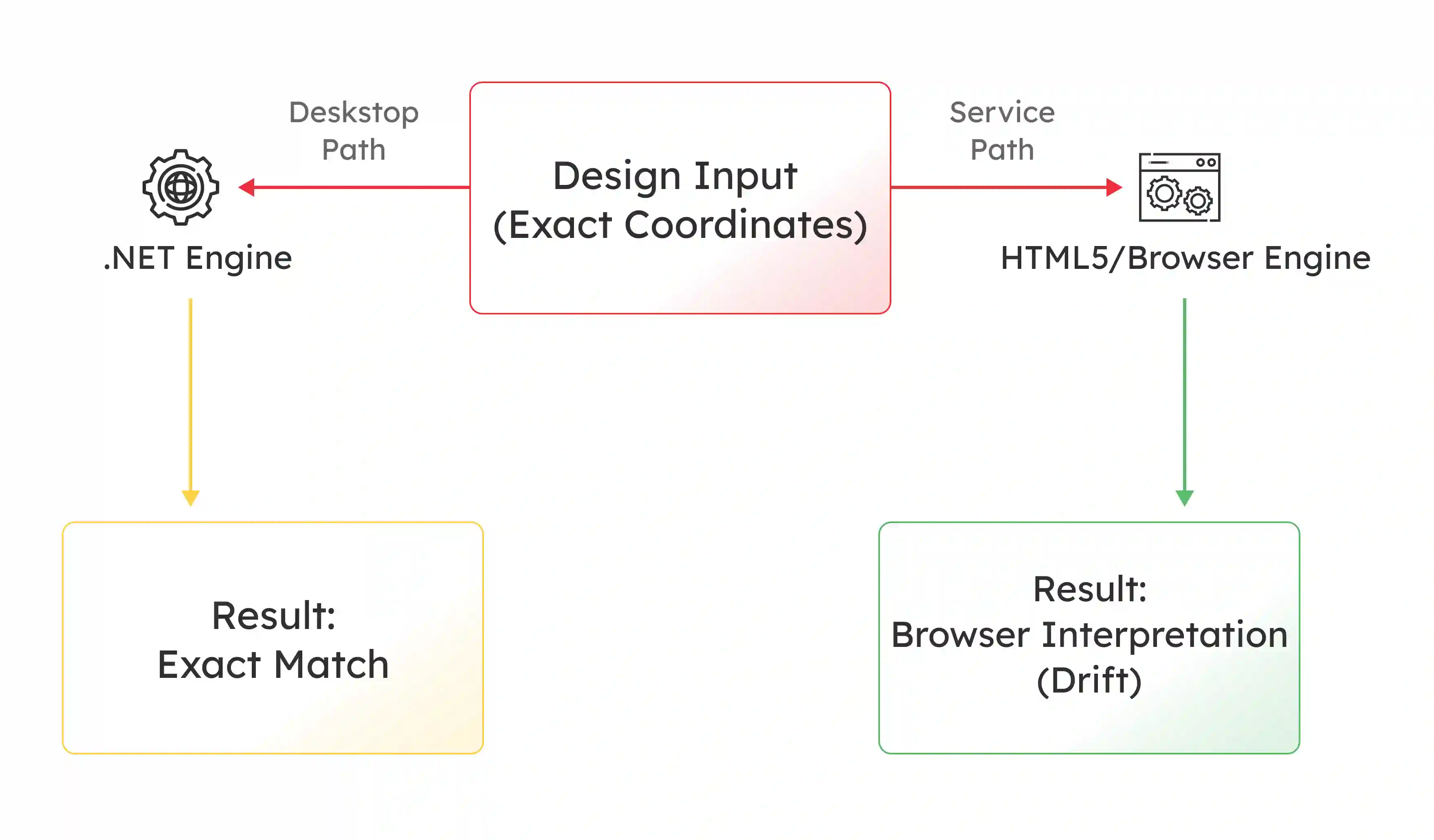
Trouble mostly stems from the architectural gap between Power BI Desktop and the Power BI Service. Why? Well, these two environments run on fundamentally different rendering engines, which leads to distinct Power BI card visualization issues at times.
Power BI Desktop relies on a .NET-based rendering engine. This uses Direct2D and Windows OS font rendering, like DirectWrite or ClearType. The Power BI Service renders reports within an HTML5 Canvas or SVG container, which means:
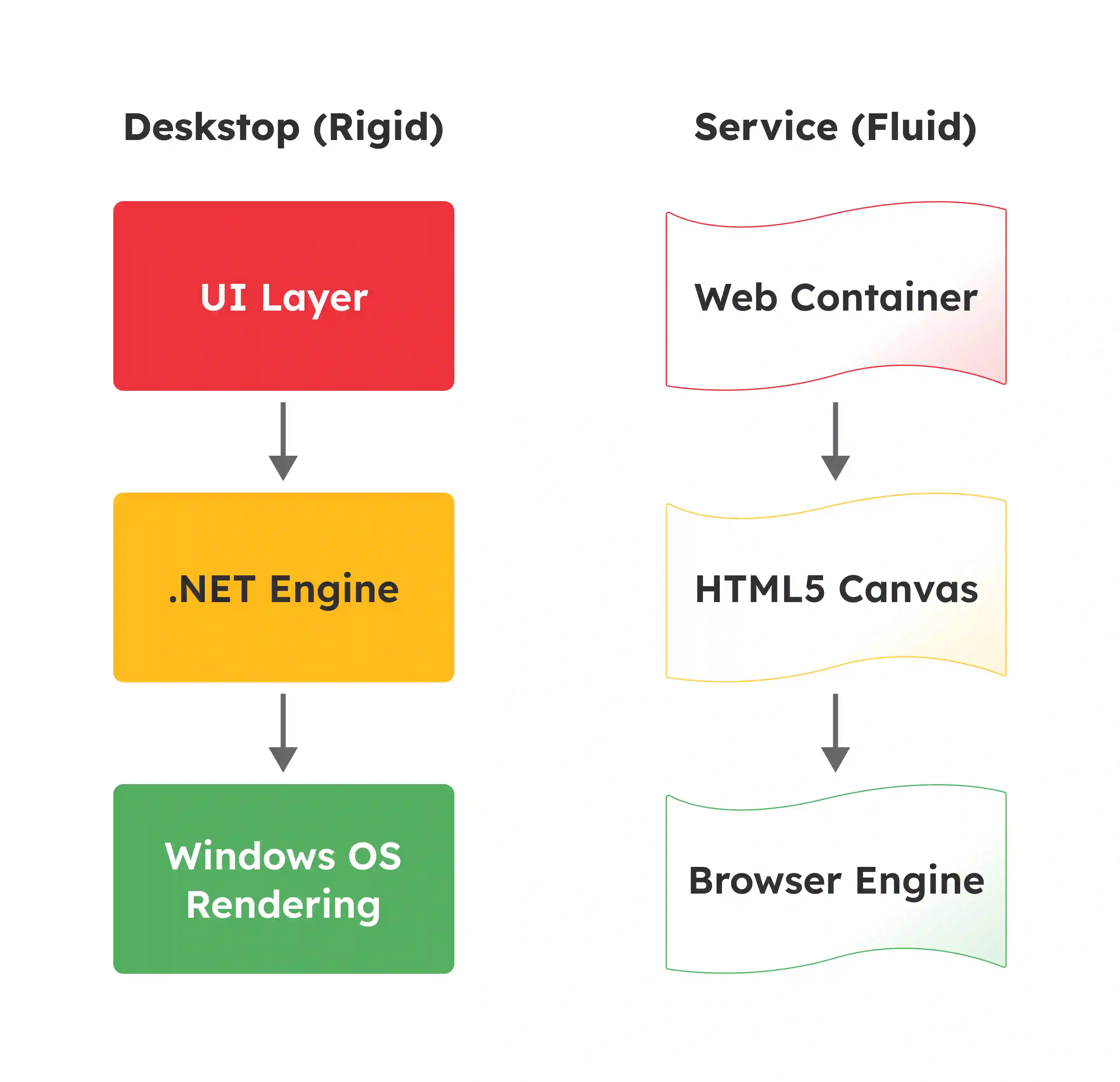
A persistent issue known as the 1-Pixel Border Glitch comes up due to sub-pixel rendering.
Mathematical calculations for visual positions change when a browser zooms to non-standard levels, such as 110%.
Which may result in fractional values like 100.1 pixels, but this issue typically occurs as the browser must figure out how to handle this, and causes Power BI data visualization issues like:
A failure in visual registration logic occurred in late 2024. This caused the New Card visual icon to wipe out completely from the visualization pane in Power BI Desktop, but was not a documented deprecation, which leads to Power BI card visualization issues like:
Specific configuration choices break report layouts beyond rendering engines. With this, things like Schema updates also mess up report layouts.
That said, understanding these underlying mechanisms helps with Power BI visualization issue troubleshooting.
A damaging regression occurred recently. The New Card visual switched over from using absolute pixel or PX values to percentage-based sizing for images.
The Power BI visualization issue with this is, no migration layer existed for this change, which can mean the engine interpreted legacy integer values like 100 as 100%.
Font rendering is not universal. Why? Well, Windows works out line height based on specific algorithms, which include ascent plus descent plus leading.
Aside from this, browsers must also use their own text layout engines. Moreover, differences occur even with standard fonts - because of this, Power BI visualization issues can occur, like:
Failures in data visibility often go back to JSON theme conflicts. A corporate theme might set up a font size for generic visual styles, where the theme might fail to explicitly list it for a specific visual, like the KPI card, due to these Power BI visualization issues may occur like:
Verify the viewing environment is standardized before altering the report design. Misalignment is often a symptom of the conflict between coordinate-based design and fluid web rendering in Power BI.
Font handling is a major source of drift and truncation. Adopting a defensive design strategy helps keep consistency across platforms.
Achieving accurate designs calls for abandoning reliance on transparent overlays. Manual positioning in Power BI should be replaced with solid containerization.
Standard troubleshooting may fail. Architectural changes or forced updates may be required to bring back functionality.
Working with top business intelligence companies can help avoid these issues altogether. However, if you’re trying to fix these things yourself, you can use this quick reference to pick out the solution for your specific symptom.
Developers must move from reactive troubleshooting to proactive architectural resilience to get through the Uncanny Valley of visualization. This requires adopting a Browser-First design philosophy in your Power BI dashboard.
Entrans has worked in the data space with Fortune 500 companies in launching reliable executive dashboards for years, making it a top BI consultancy to work with.
With certified Microsoft Fabric and Power BI consultants for advanced data visualization.
With experience resolving pixel misalignment, missing text, disappearing data, and Service regression issues, we’ll restore confidence in your reporting layouts.
Want to know more? Book a free 15-minute consultation call!

This is a known Ghost Visual phenomenon. A registration failure caused this during the update from Preview to General Availability. The application failed to reconcile the GUID of the visual. This led to its omission. The fix involves executing a Restore default visuals command in the visualization pane. Alternatively, manually purge the local CEF cache.
A schema migration failure caused this. The sizing logic switched over from absolute pixels to percentages. The rendering engine interprets legacy pixel values like 50 as 50%. This causes massive expansion. You must manually update the settings to use percentage-based sizing.
The PDF export engine often struggles with alpha-channel transparency. It flattens layers into a single image. The engine defaults to white if it does not support the CSS alpha channel for containers. The solution is to avoid transparency for export-critical reports. Use solid background colors instead.
This misalignment is tied to the viewport coordinate transformation matrix. The popup element position is calculated based on scroll position and browser zoom. The calculation drifts if the zoom is not 100%. This pushes the list off-screen. Resetting zoom usually clears this up.
The Service applies a Dashboard Theme when a visual is pinned. This theme can strip custom formatting. Conditional rules applied to text color are often ignored by the tile renderer. Pinning a Live Page instead of a single visual preserves the original formatting logic.
The Service often fails to pass filter context to the New Card visual. This happens when it is used as a report page tooltip. Desktop handles this correctly. However, the Service rendering engine may display a Total or All value instead of the filtered data point. Developers often have to revert to legacy cards for tooltips to verify accuracy.
This is due to typography divergence. Power BI Desktop uses Windows OS font rendering. The Service uses the layout engine of the browser. Slight differences in how line height is calculated accumulate over long tables. This difference is often a fraction of a pixel per line. This causes the rows to drift relative to static overlays.
This is likely a JSON theme conflict. Your theme file might include a font size for generic styles. The file might not include one for the specific KPI visual. The Service may interpret the inheritance differently than Desktop. The engine applies a default or null value. Explicitly
defining the font size for the KPI selector in the JSON file resolves this.
This 1-pixel border glitch is an artifact of sub-pixel rendering. Browser zoom might be set to non-standard levels like 90% or 110%. The browser must figure out how to round fractional pixel coordinates. This often results in a visible gap or overlap. This gap does not exist in the Direct2D rendering of the Desktop app.
Disable Text Autosize in the format settings of the card. Set a fixed font size. Additionally, stick to web-safe fonts like Segoe UI or Arial. This prevents the Service from dynamically resizing text based on its own internal logic. This logic can differ from the Desktop behavior.

-1.svg)